How Tos
How To Set Up Better Privacy Controls
Take control of your digital privacy with clear privacy controls Learn actionable tips and real scenarios for app permissions, tracking, social media and device backups
Advertisement
Checking your apps and devices feels routine, but small changes to privacy controls can make your digital life feel more secure in moments.
Nowadays, privacy controls matter for everyone. Almost every activity—from texting to browsing—leaves a trail. Strong privacy controls help keep your information just where you want it.
Dive into this guide to untangle the best privacy controls for your digital routine. Discover straightforward steps, actionable examples, and practical solutions for greater peace of mind.
Changing App Permission Settings for Control
Turning off unused app permissions immediately shields you from leaks. These settings determine what data each app can access—giving you the power to control your private information.
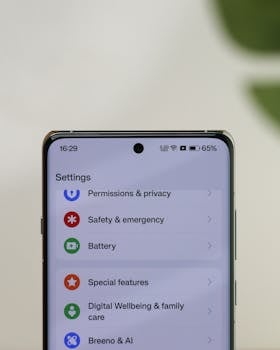
Start by reviewing permissions in your device settings. Focus on apps you use least and check which ones access location, microphone, or camera.
Turning Off Unnecessary Permissions
Open your settings, then scroll to Apps or Permissions. You’ll notice some apps requesting more than they need—disable location or contact access unless it’s essential.
For example, a weather app may ask for your microphone, but that’s rarely required. Switch off that permission for peace of mind without losing basic app features.
After restricting excess permissions, use your apps for a day. Notice if anything breaks. If not, keep the new settings—this micro-adjustment delivers instant privacy control.
Reviewing App Behavior Regularly
Each month, revisit which permissions are granted. You might find forgotten apps still tracking your location or photos—delete or re-limit access as needed.
Compare app activity with how you use them. If an app never opens but still runs tracking in the background, remove it or block permissions immediately.
This habit, repeated every few weeks, can block hundreds of unnecessary data points from leaving your device. Set a recurring reminder to help cement it.
| App Type | Common Permissions | Recommended Controls | Actionable Takeaway |
|---|---|---|---|
| Messaging | Contacts, Microphone, Camera | Disable microphone unless calling | Check monthly for changes |
| Navigation | Location, Storage | Enable location only when active | Review after each big trip |
| Social Media | Photos, Location, Contacts | Limit to only essential media | Restrict in-app photo access |
| Gaming | Storage, Contacts | Avoid contact syncing | Review permissions every game update |
| Productivity | Calendar, Camera | Permit calendar, block camera | Audit after installing new tools |
Reducing Online Tracking and Digital Footprints
Limiting digital footprints means fewer companies can monitor your habits. Fewer trackers mean fewer personalized ads and less data for companies to analyze or sell.
Disabling excessive tracking offers more privacy. Also, updating browser settings and blocking trackers can keep digital activity private with minimal effort.
Switching to Private Browsing Modes
Enable Incognito or Private Mode in your browser for web sessions. This mode deletes cookies and browsing history automatically after use. It’s a straightforward way to enhance privacy controls.
Private Mode doesn’t save logins or searches, so re-entering passwords is necessary. It’s perfect for sensitive searches or browsing on shared devices at work or home.
- Use private windows for shopping or banking sessions to stop cookies from following you, preventing targeted ads elsewhere.
- On public Wi-Fi, combine private browsing with VPNs to keep information out of reach from strangers or prying eyes.
- If you use shared computers, always close private sessions fully. This clears temporary files and keeps info from lingering.
- Skip extensions during private browsing, as plugins may bypass privacy controls. Install only essential, trustworthy add-ons outside private mode.
- Activate private or guest accounts—not just browser modes—on shared laptops for another layer of privacy control in daily life.
Practicing these habits every week can noticeably tighten privacy controls across devices with almost no learning curve or software changes required.
Blocking Ad Trackers and Third-Party Cookies
In your browser preferences, turn off third-party cookies. This stops advertising networks from linking your activities across multiple sites. It’s a reliable privacy control step.
Install ad-blocking extensions such as uBlock Origin or Privacy Badger. These tools operate quietly, stopping trackers before they collect information or build a profile.
- Check browser settings for “Enhanced Tracking Protection” or “Do Not Track” features. Activate these tools to instantly boost your privacy controls with no added steps.
- Clear cookies every few days if possible. Some cookies build up tracking behavior over weeks. A quick manual wipe resets any ongoing tracking.
- Block script-heavy or unfamiliar ads entirely. Avoid clicking strange ads—they can bypass even tough privacy controls with clever tricks or hidden trackers.
- Regularly review and clean your browsing history. Data left behind can reveal patterns, so make it a habit to delete or auto-delete aged records.
- Update browsers quarterly for new security updates—new versions often include better privacy controls. Old browsers get targeted by trackers and leaks.
Every action above makes your privacy controls work harder over time. Take a few minutes to layer on each tip for incremental and reliable privacy wins.
Securing Device Lock Methods for Daily Use
Setting up strong lock controls makes devices harder to access physically. This step matters whether you store work emails, personal photos, or financial data on your device daily.
Choosing Secure PINs and Biometrics
Use a PIN longer than 4 digits or set up biometrics—fingerprint or facial recognition adds a barrier for unwanted access. Combine both for layered privacy controls that are tougher to crack.
Pins should avoid birthdates or repeat numbers. Try a sequence like 286517 instead of something predictable. For biometrics, retrain the sensor with a fresh scan every few months.
If you spot fingerprint failures, wipe the sensor and reinstall your prints. Always add a backup PIN for emergencies, sometimes devices require an additional authentication step.
Lock Screen Notifications and Automatic Timeout
Turn off or limit lock screen notifications. Sensitive messages, like verification codes or bank alerts, shouldn’t show before unlocking. Head to Settings, search “notifications”, and tighten what’s visible externally.
Set your device to lock quickly after inactivity—30 seconds or less. This quick lock makes privacy controls more robust in public, such as coffee shops or libraries.
Compare device lock and timeout settings between work and personal phones. Tweak as needed—always adjust these privacy controls if you share your device or leave it unattended frequently.
Making Social Media Profiles Less Accessible
Managing who sees your posts is achievable—adjust privacy controls in your app profile. This directs your updates to only those you trust, blocking strangers or companies from viewing your life uninvited.
Carefully choosing who can view, comment, or follow helps sharpen privacy controls quickly. Social media tools often hide detailed options in profile or privacy menus.
Customizing Who Can See Your Posts
Select audience options, such as “Friends Only” or “Custom Lists,” when posting updates or photos. This way, you keep work contacts from seeing family events and vice versa.
If you’re tagged in posts by others, adjust tagging privacy to review before it goes public. You control every mention, boosting privacy controls against unwanted attention.
Try the “View as Public” tool on your profile. This lets you spot what strangers see, so you can fix privacy holes before trouble starts or information spreads.
Audit Old Content and Followers
Review your post history every few months. Hide or delete anything no longer relevant—this reduces discoverable information, tightening privacy controls for good.
Scroll through your followers or friends list. Remove people you don’t recognize or trust. This keeps your digital circle limited, even as your network grows.
Adjust these habits after every job change, move, or major life event—privacy controls should evolve as your circumstances change and your priorities shift.
| Social Network | Key Privacy Setting | Default Setting | Recommended Action |
|---|---|---|---|
| Post visibility | Friends | Customize for each post | |
| Profile privacy | Public | Switch to Private | |
| Profile viewing options | Full details | Limit to connections | |
| Tweet protection | Public | Protect Tweets | |
| Snapchat | Story viewers | Everyone | Only friends |
Using Device Encryption and Secure Backups
Activating full-device encryption ensures that private files can’t be accessed without a password or passcode. This transformation protects your information in the event of loss or theft.
Paired with secure, encrypted backups, these privacy controls round out a comprehensive digital lockbox, giving you confidence that even rare emergencies won’t leave you exposed.
Enabling Device Encryption
On most newer phones, encryption is enabled by default, but double-check in your security settings. When encryption is on, every file is scrambled without your unlock code.
If your device offers a “Secure Folder,” move sensitive files inside. These extra layers add to your privacy controls, as even unlocking the phone doesn’t grant access to everything at once.
After enabling, test by connecting your device to a computer. You shouldn’t see private files without unlocking the device, confirming your privacy controls are in place.
Securing Backups with Passwords
When choosing backup options, prefer encrypted cloud services or locked local backups. Set strong, unique passwords rather than reusing one from another account.
Update your backup password every few months. Each password change makes it harder for hackers to break through privacy controls, especially with data stored outside your direct reach.
If you need a password manager, pick one with two-factor authentication. This final measure secures your privacy controls—even if one password leaks, your files remain safe.
Limiting Shared Data with Apps and Third Parties
Controlling data shared with outside organizations clamps down your privacy controls. Vendor agreements, app permissions, and third-party integrations shape who views your activity—narrowing exposure reduces risk.
Review app “sharing” or “data” settings routinely. Look for language such as “share with partners” or “usage analytics.” Turning off these levers limits information flow beyond your device.
- Opt out of app data sharing whenever possible—this minimizes advertising profiles built about you and keeps purchases or searches private from marketers.
- Reject “social login” buttons—rather than logging in with a main profile, set up dedicated credentials so no cross-app data is shared automatically.
- Delete unused accounts, not just unused apps. Old logins can leak private details even when you no longer use the tool or service day-to-day.
- Review third-party integrations quarterly, especially after adding new software. Any connected service is a possible privacy controls weak point.
- Double-check permissions after each major app update—sometimes new features or agreements restore old sharing defaults you’d previously denied.
This proactive maintenance makes your privacy controls truly durable, transforming habits from one-time changes into everyday routines.
Building Habits That Strengthen Privacy Controls Over Time
Creating privacy controls isn’t just about settings—it’s about steady routines. Habits make fast decisions automatic, delivering protection without constant attention or reminders.
Your daily digital routines—reviewing permissions, cleaning histories, limiting share settings—build ongoing privacy strength as naturally as brushing your teeth.
Establishing Weekly and Monthly Checklists
Write a simple list: every Sunday, review social app permissions; monthly, reset device passwords and check backup security. Stay committed by setting reminders on your calendar.
If you skip a week, pick up the list the following Sunday. Consistency, not perfection, builds strong privacy controls that adapt as tech and threats shift over time.
After each checklist, note any surprises. Did a new app appear? Did you miss a password update? Personalize your checklist to keep up with real changes in your digital life.
Comparing Digital Privacy to Locking Your Front Door
Just as you wouldn’t leave your front door unlocked overnight, avoid leaving privacy controls unchecked. Review settings each night before bed, much like checking the locks at home.
If you travel or lend your device, it’s like having a friend house-sit. Brief them on key privacy controls—what must stay locked and which data to keep confidential.
Every time you configure a new device, act as though you’re re-keying the locks; review every privacy controls switch from the ground up before daily use begins.
Final Thoughts for Proactive Privacy Control
Every privacy controls adjustment adds up, creating a security layer that works quietly in the background. Each change, no matter how small, strengthens overall protection.
Living with strong privacy controls is about feeling at ease while browsing, sharing updates, or storing sensitive files—without thinking twice about hidden risks or leaks.
Make small changes today, revisit privacy controls every month, and stay flexible as new tools arrive. These actions shape a safer, calmer, and more private digital experience for years to come.